NLU Model Evaluation
The NLU Model Evaluation provides tools to analyze how AI Agents interpret user inputs. By reviewing conversation history and confidence scores, you can identify areas where the NLU model requires further training or adjustment.
To access the Evaluation Tool, on the NLU menu, click Evaluation.
Evaluation Dashboard
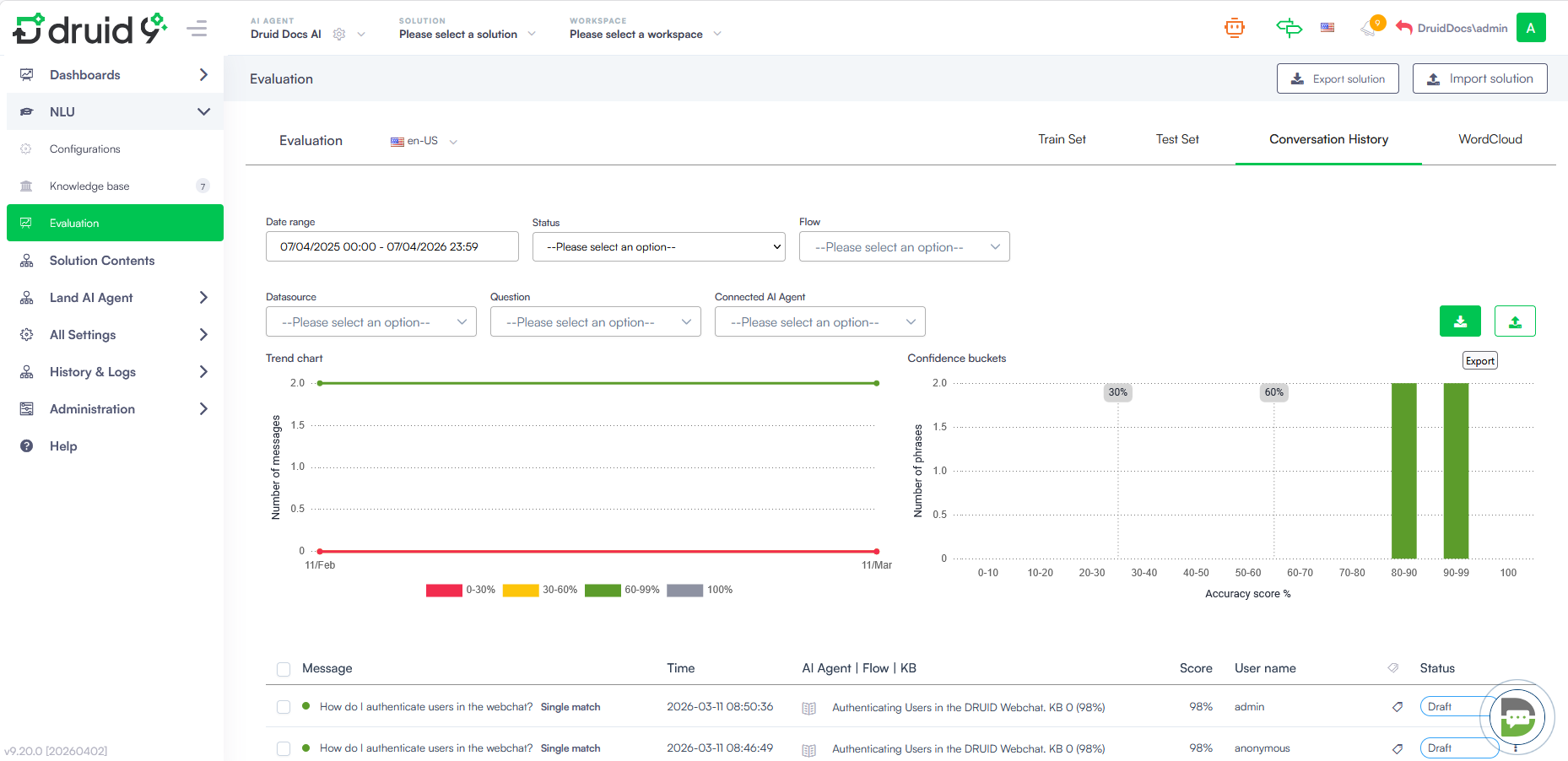
The dashboard offers a visual representation of NLU performance over a selected date range.
- Trend Chart. Displays the volume of messages processed and identifies fluctuations in NLU accuracy over time.
- Confidence Buckets. Groups user phrases by their accuracy score, allowing you to see what percentage of interactions fall into high, medium, or low confidence categories.
- Conversation History Table. Provides a granular look at individual messages, the matched intent (Flow or Knowledge Base), and the confidence score.
Filtering the data
The Conversation History tab lets you review messages sent to the AI Agent and evaluate how well they were matched to intents. Use the filters at the top of the page to narrow down the data.
| Filter | Description |
|---|---|
| Date range | Restrict results to a specific time window. |
| Status | Filter by match status (e.g. Single match, No match). |
| Flow | Limit results to conversations that matched a specific flow. |
| Datasource | Filter by KB data source used. |
| Question | Search for a specific user utterance. |
| Orchestrated AI Agent |
Filter by an orchestrated AI Agent. NOTE: This filter is available only when accessing the conversation history of a Druid Conductor.
|
Exporting and Importing Conversation History
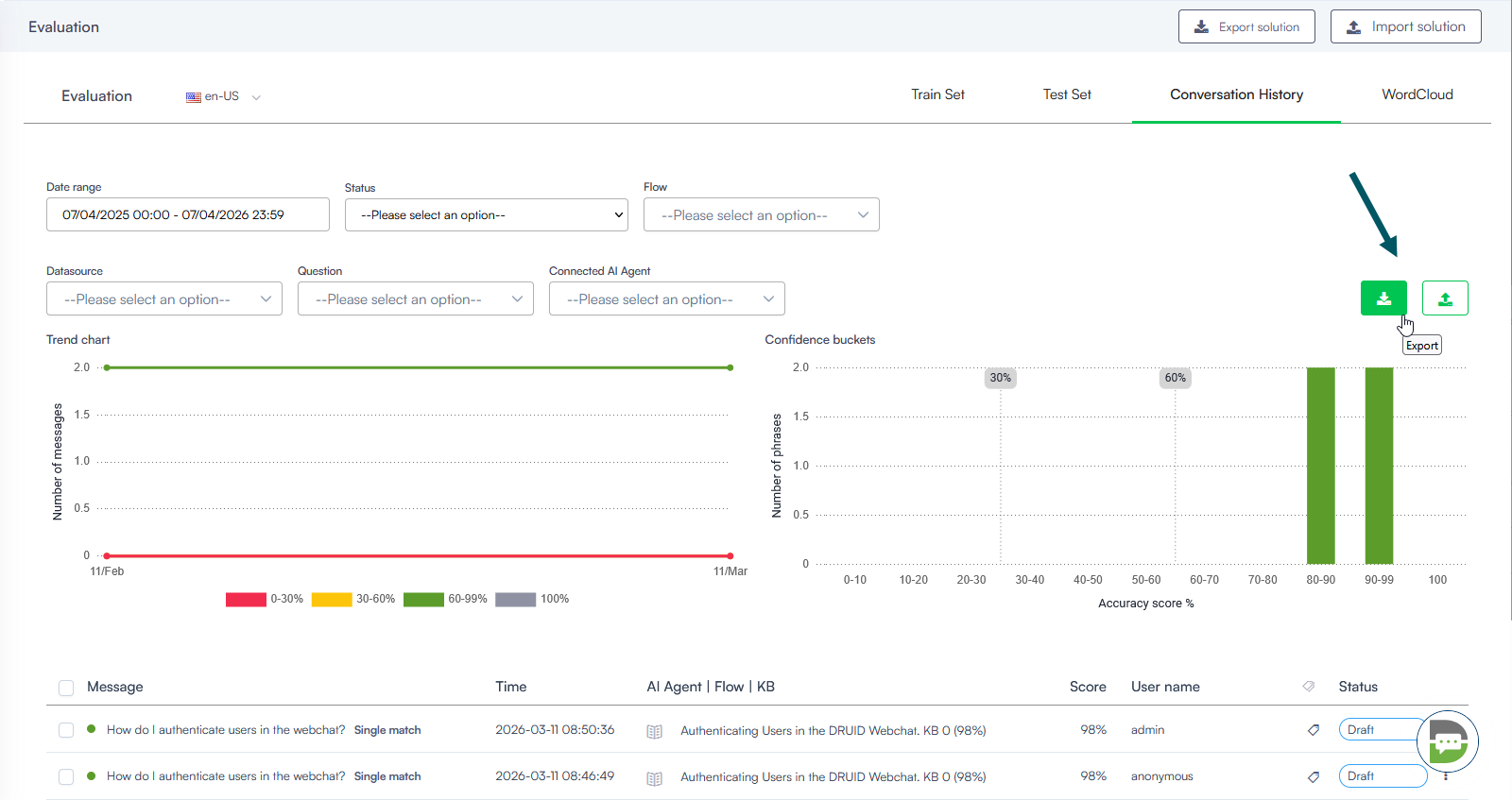
You can manage NLU data externally by using the Export and Import buttons located above the conversation history table.
Exporting Conversation History
Clicking the Export button downloads an Excel file containing the filtered conversation history to your computer's default download folder. This file includes:
- Message details. The original user phrase and the detected language.
- Matching logic. The matching status (e.g., SingleMatch), the confidence score, and the specific Flow IDs or Names triggered by the input.
- User info. The username (e.g., anonymous or admin) and the channel used.
Importing Conversation History
The Import button allows you to upload previously exported or modified NLU data back into the system for batch analysis.
Managing the Evaluation List
Within the Conversation History tab, you can take direct action on specific user messages:
- Refine training. Identify phrases with low scores and click the edit icon to map them to the correct intent or add them to the Train Set.
- Status indicators. View whether a phrase is currently in a Draft state or has been integrated into the active model.
 Related Topics